Import ROS 2 recordings in their native format
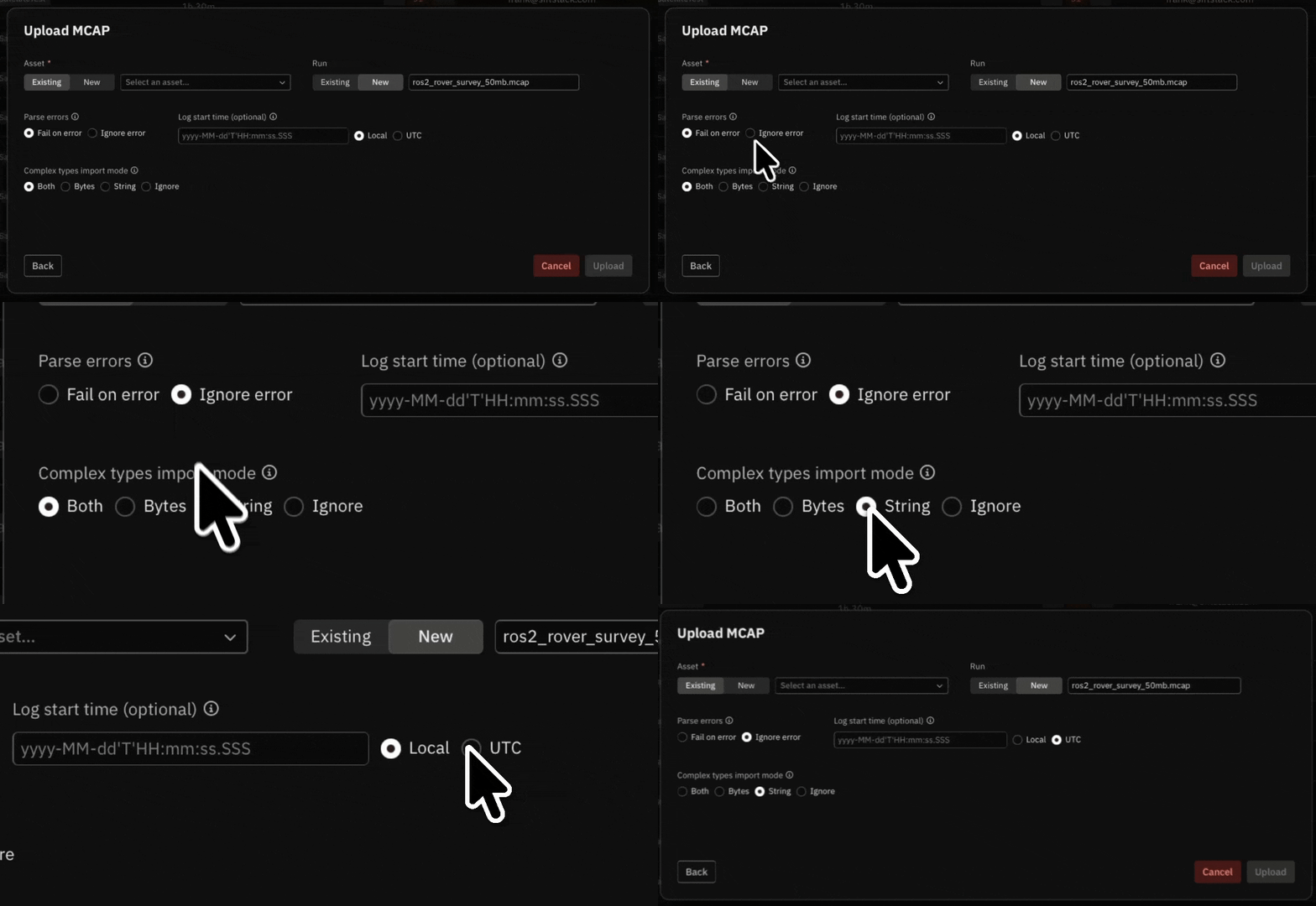
Bring.mcap files into Sift through the UI, API, Sift CLI, or Python client with MCAP imports. Each supported ROS 2 topic becomes a typed Channel inside the Run and Asset you choose.
- Set a start time for recordings that need clock alignment.
- Choose how to store point clouds, laser scans, and other complex fields.
- Skip unsupported topics and import the rest of the file.
Keep redlines and targets in view
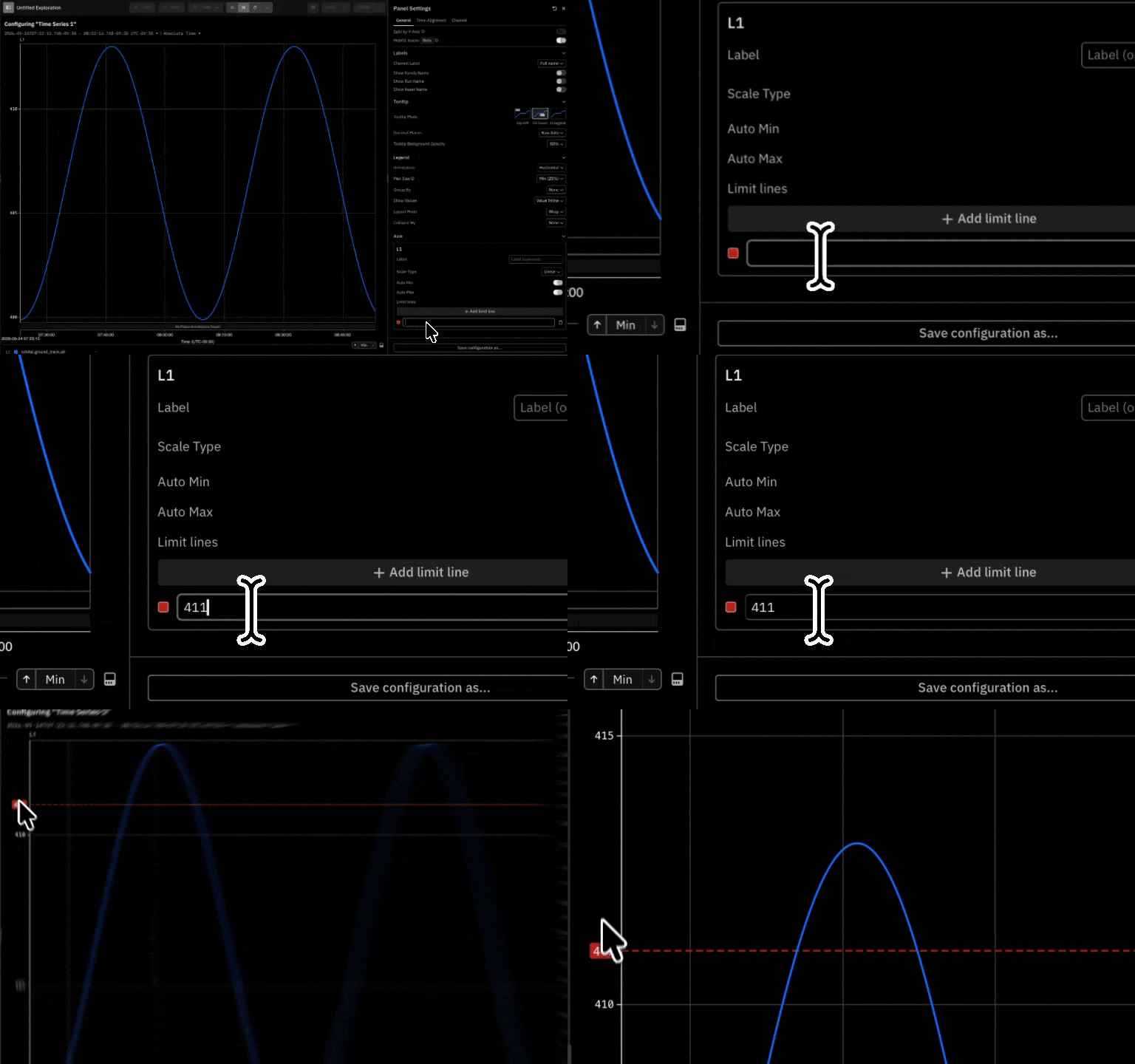
Mark important values on a Timeseries Panel with Limit Lines. Each line stays visible as you pan, zoom, save the Panel, or share it.- Enter each limit once in Panel settings.
- Keep each line tied to the correct Y-axis.
Stay oriented across every Panel
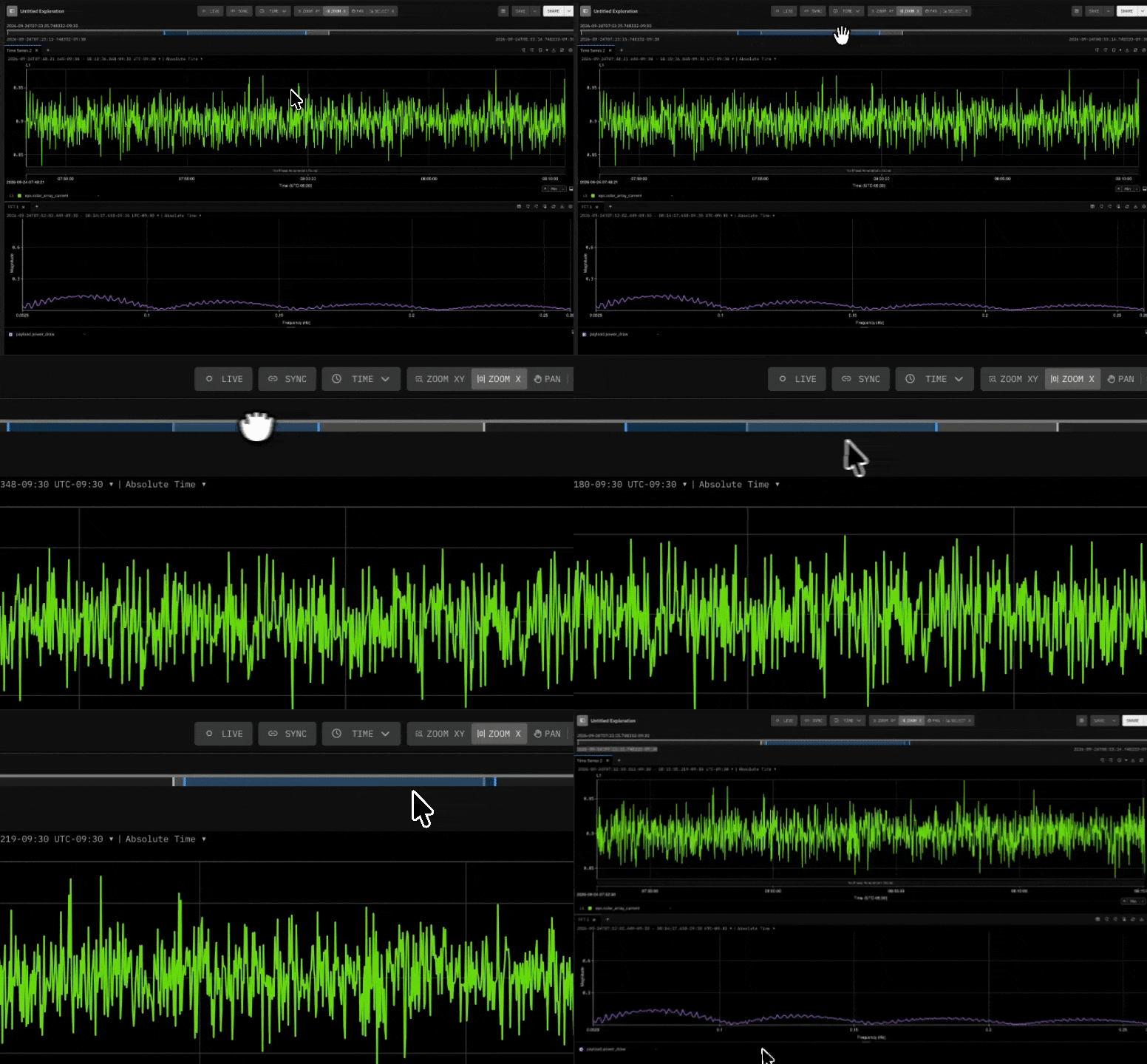
See where each Panel sits across the full test with the Time Slider. Drag its range to pan or zoom, or jump straight to another Panel.- Set the full page range from the start and end times.
- Reset the view from the right-click menu.
Carry any chart into your next review
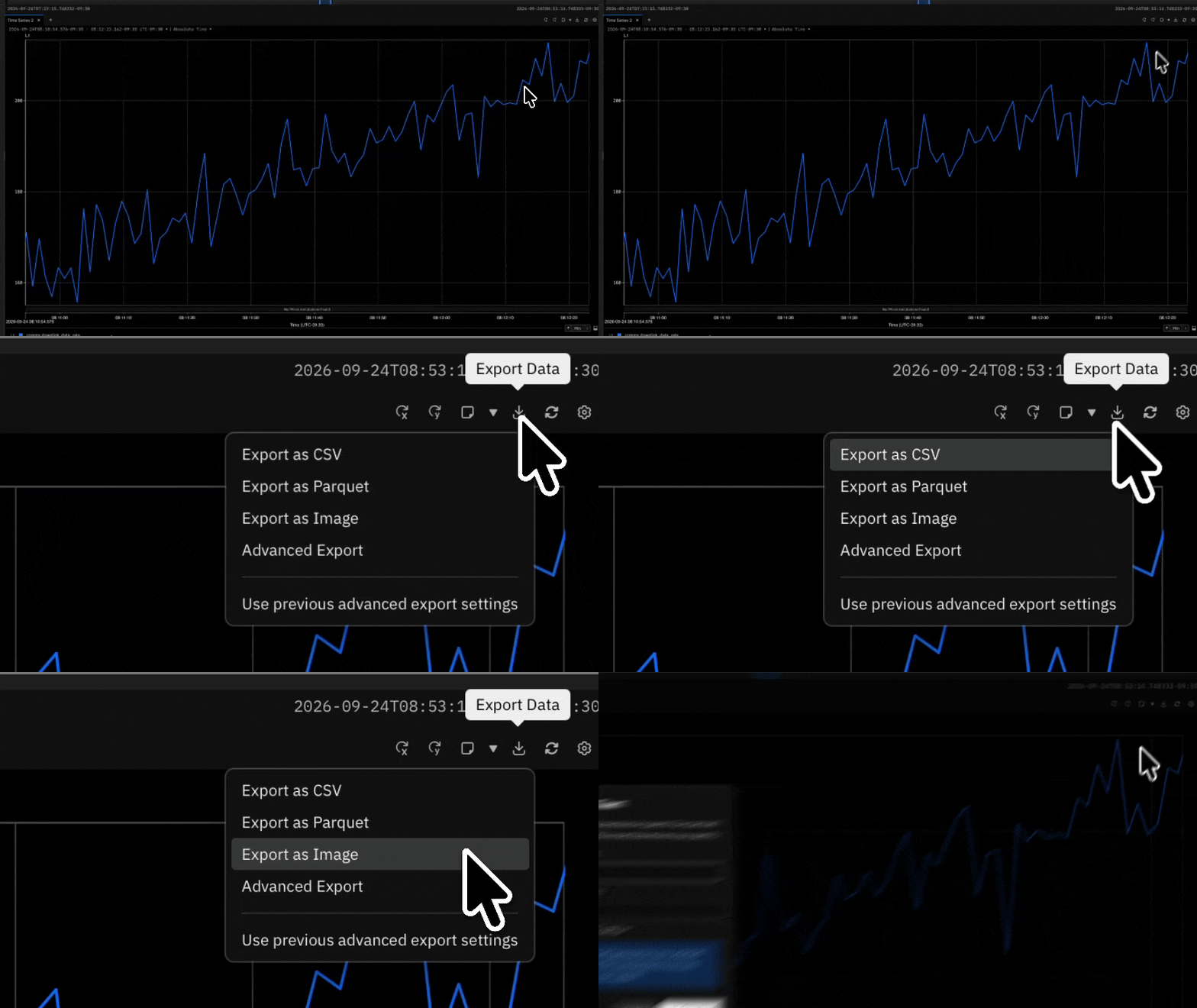
Save a Timeseries, FFT, Histogram, or Scatter Plot Panel as an image with PNG export in supported browsers. The file keeps the chart and legend as they appear in Explore.- Choose Export as Image from the Panel toolbar.
- Keep working while the file saves in the background.